
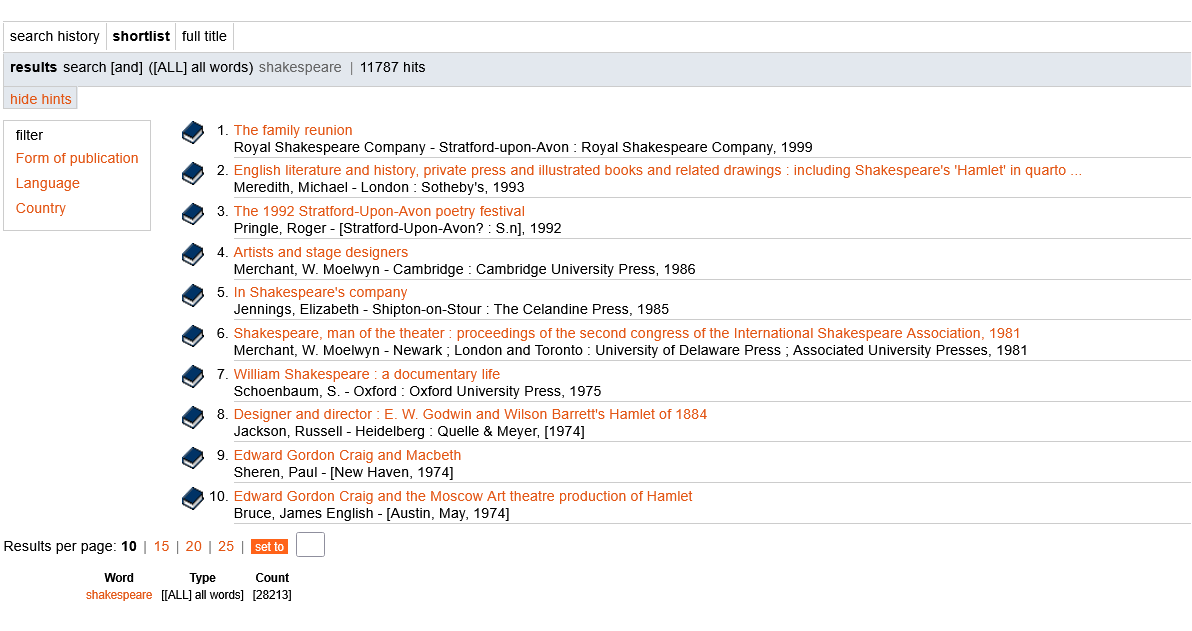
The result screen is displayed after the search operation is complete. This screen shows a list of short titles. By default the titles are sorted by relevance. This collection of short titles is also called the Shortlist. Each term in a title that corresponds with your search term, is considered a hit. You can use the shortlist to analyze whether or not your search criterion was successful.
View search results
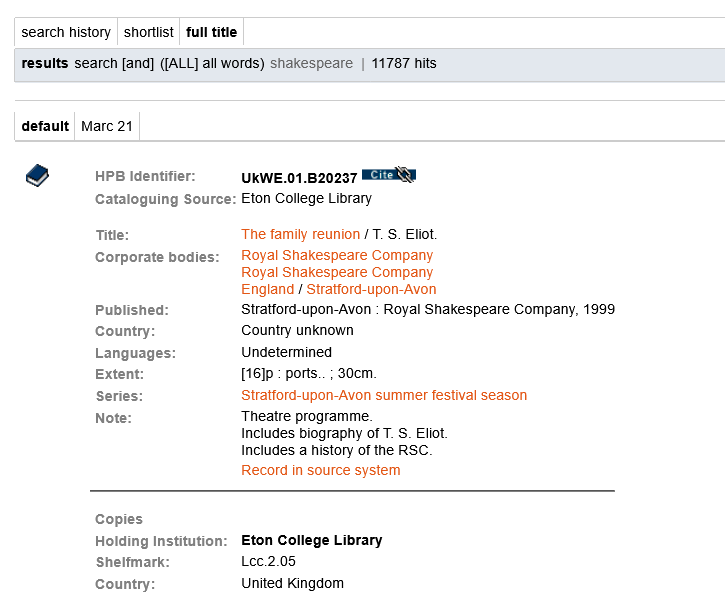
You can view a hit by clicking on it. All relevant bibliographical data, such as title, author, imprint, etc. are now displayed on the screen (default view). Additionally, the MARC21 format view is available from a separate tab. Viewing the search results helps you proceed with your search operations; it shows you whether the information displayed must be further restricted in a subsequent search operation. You can always return to the title list by clicking on [Shortlist].
Icons in the search results screen
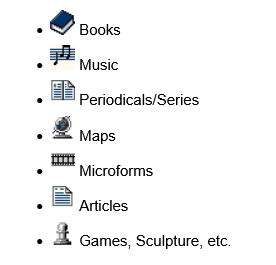
The focus of the HPB is on early printed books, but you may occassionally find other types of publications (such as maps and music) as well. The icons shown below indicate the type of publication in the search results screens.
Filtering search results
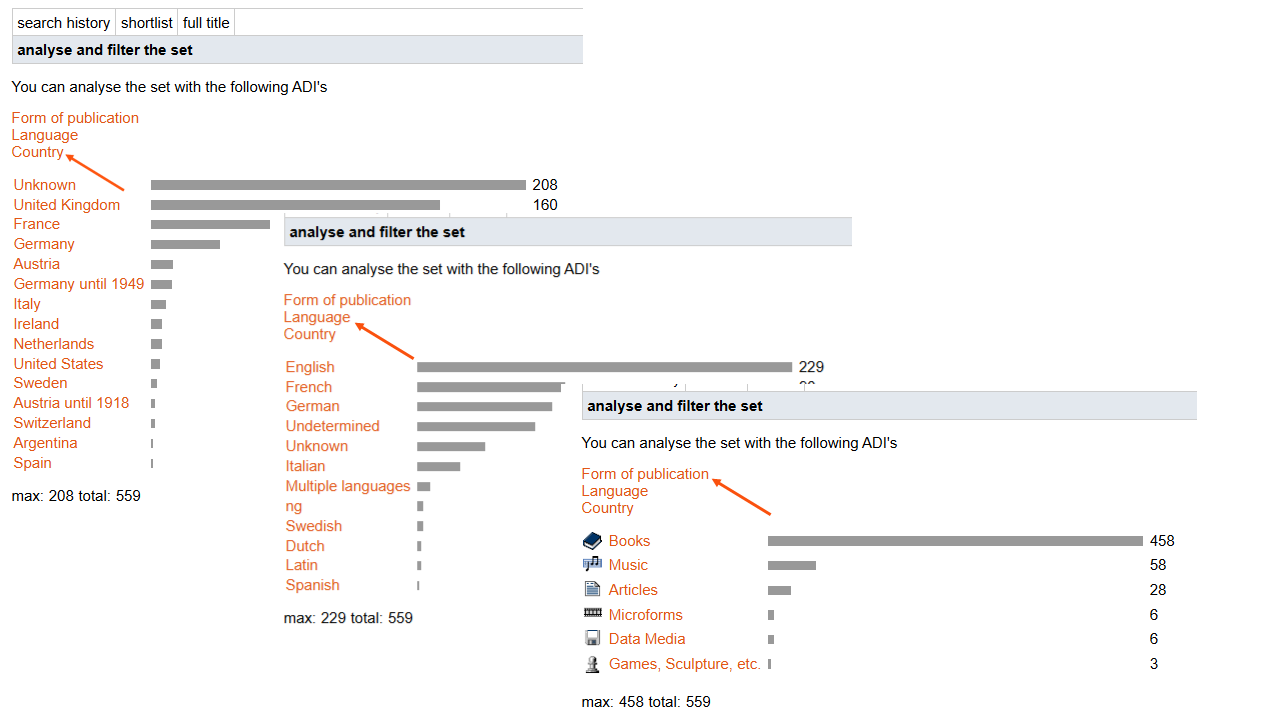
To the left of the short list, a list of facets appears. You can analyse your search result, by viewing the types of publications that are present in your search result, which languages are represented and in which countries the books were printed.
For the languages and the country of publication we rely on language codes and country codes being present in the data. Please note that not all data sets that were contributed to the HPB, contained these codes.
Perform a search operation on the search result
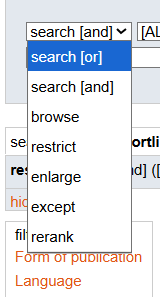
Once the results of a search operation are displayed, menu 1 contains a number of extra search options. This allows you to perform a search operation on the search results displayed.
- Restrict
Select this method if you want to use the AND search method on the result. - Enlarge
Select this method if you want to use the OR search method on the result. - Except
Select this method if you want to use the NOT search method on the result. - Rerank
Select this method if you want to re-sequence the results. Select the desired sort sequence in menu 3 of the simple search or in the advanced search screen.
Search history
When you click on the tab Search History, you see a list of all the searches that you have executed so far. Each search is numbered.
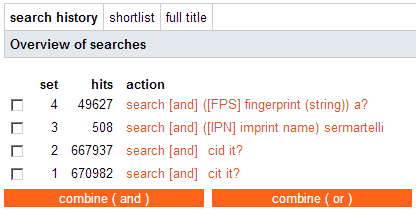
You can combine sets by including set numbers in the command line of your search request, for example: s1 and s2 or s1 or s3, or by selecting the sets and clicking on one of the [Combine] buttons.